 webCOMAND Docs
 Developer Guide
 Bases
Bases Export Settings
Export Settings
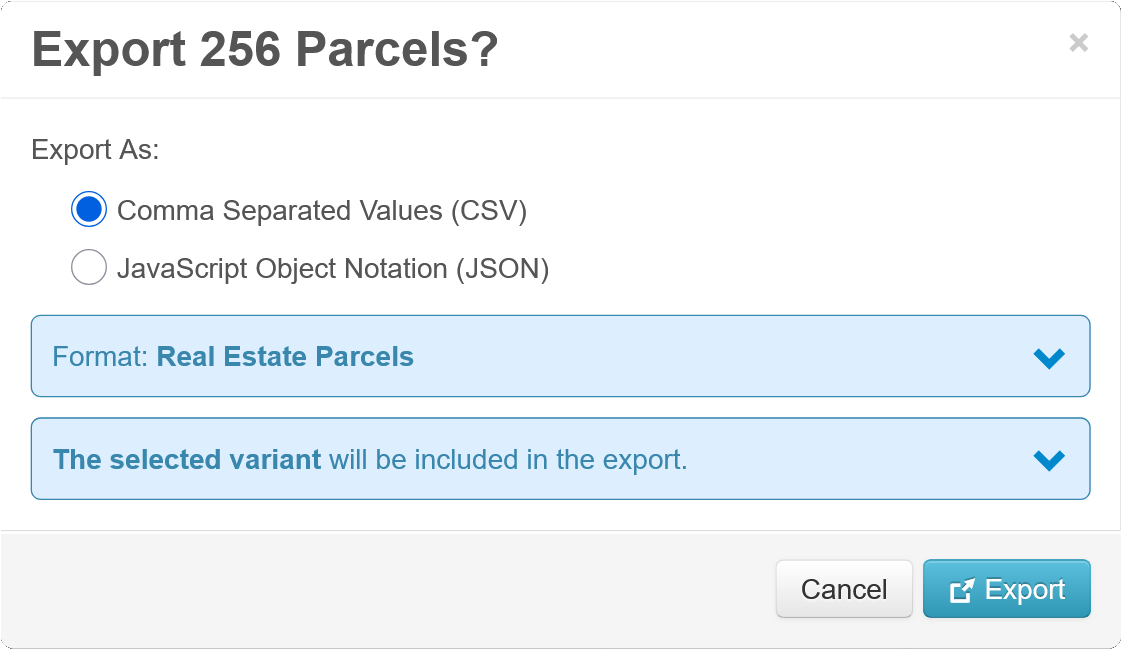
Export Settings define a format and rules for exporting content from the the Collection Toolbar.
Fields
The following fields define the drop-down options, and when they should be available.
Main
- Title - Title for the settings, as it will appear in the export drop-down menu.
- Description - Optional description for these settings, as it will appear when the mouse hovers over the option in the drop-down menu.
- Active - These settings are only considered when active is checked.
- Folders - The folder(s) to apply these settings to. Choose the Root folder with 'Inherit Folders' to apply to all content of matching types in the system (including those without any folder(s) assigned).
- Inherited Folders - If checked, all subfolders (and their subfolders, etc) will also inherit these settings.
- Content Types - The content type(s) to apply these settings to. Choose the cObject type with 'Inherit Types' to apply to content of all types in the selected folder(s).
- Inherited Types - If checked, all subtypes recursively will also inherit these settings.
Export
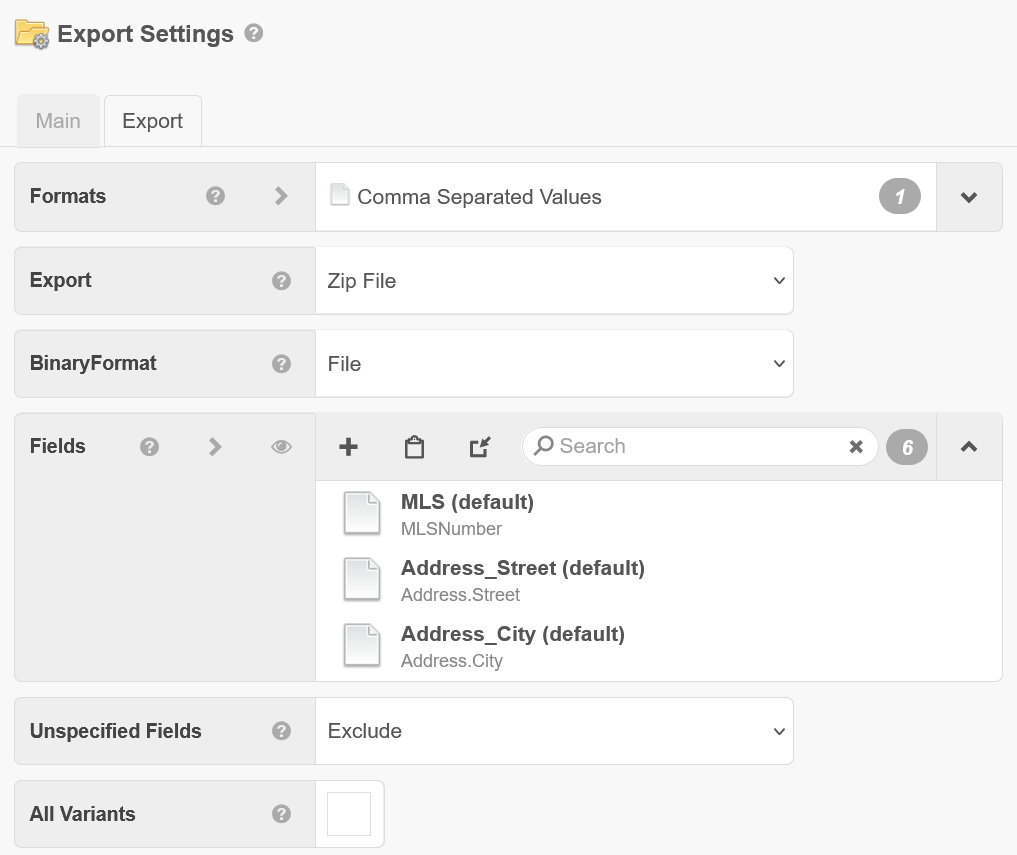
- Formats - The I/O formats that this special formatter should apply to.
- Export - How to deliver the exported data.
- Binary Format - The default format for binary fields exported from the repository. Unless overridden by Export Formatter Fields, this is the format for exported binary data.
- Fields - The format fields to apply.
- Unspecified Fields - Choose whether to Exclude, Prepend, or Append fields not specified in the above Fields list.
- All Variants - Whether to export all variants of content. If not checked, only the selected variants from the cPath will be exported.
To add Export Settings:
- Launch Content Manager (CMS)
- Click the desired folder where you would like to store the Export Settings. The folder is for organization purposes only and will not impact where the export settings apply.
- Click Add and select "Export Settings".
- Enter a Title and Description.
- Select the desired Folder(s) to apply the settings to.
- Select the desired Content Type(s) to apply the settings to.
- Adjust the desired Export fields.
- Click Approve.
Add Export Settings