 webCOMAND Docs
 Developer Guide
 Bases
Bases View Settings
View Settings
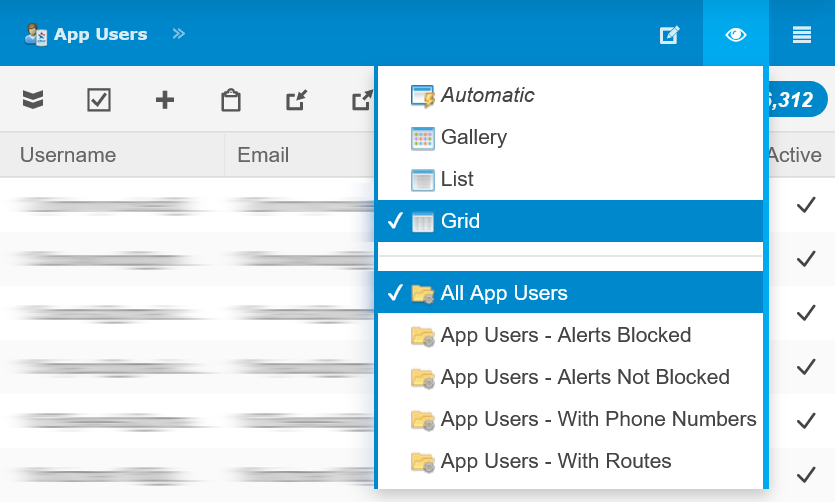
View Settings define options available from the Views menu in the Navigation Bar.
Fields
The following fields define the menu options, and when they should be available.
Main
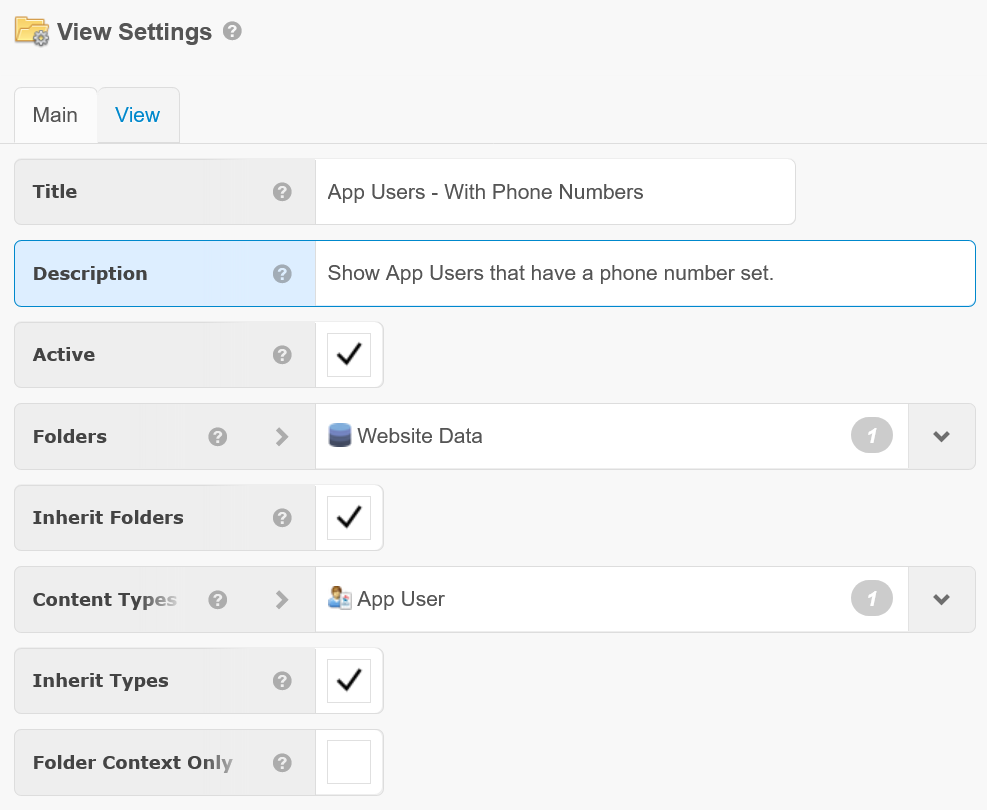
- Title - Title for the settings, as it will appear in the search icon drop-down menu.
- Description - Optional description for these settings, as it will appear when the mouse hovers over the option in the drop-down menu.
- Active - These settings are only considered when active is checked.
- Folders - The folder(s) to apply these settings to. Choose the Root folder with 'Inherit Folders' to apply to all content of matching types in the system (including those without any folder(s) assigned).
- Inherited Folders - If checked, all subfolders (and their subfolders, etc) will also inherit these settings.
- Content Types - The content type(s) to apply these settings to. Choose the cObject type with 'Inherit Types' to apply to content of all types in the selected folder(s).
- Inherited Types - If checked, all subtypes recursively will also inherit these settings.
- Folder Context Only - If checked, these settings will only apply if the user is viewing the target object(s) with respect to the folders in this settings instance.
View
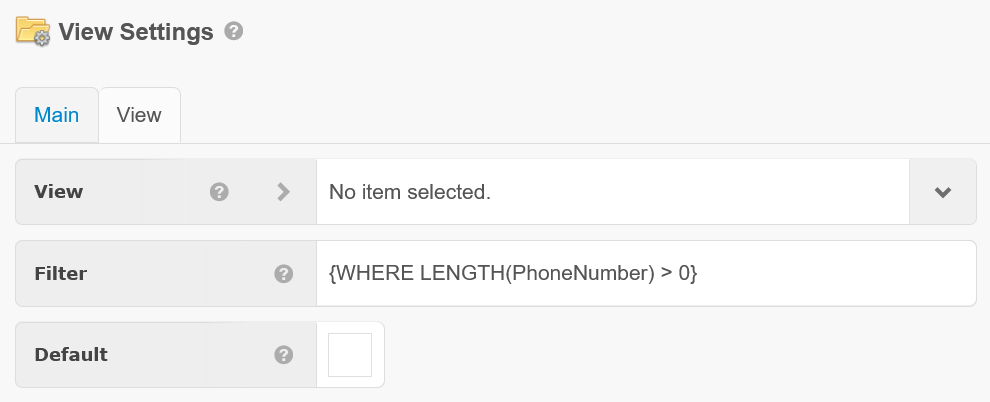
- View - The view to display when these settings are chosen.
- Is cTemplate - If checked, the filter will be evaluated as cTemplate code.
- Filter - A cPath or cQL query filter to apply to the collection when this option is selected.
- Default - If checked, these view settings will be automatically selected when a matching view is opened.
To add View Settings:
- Launch Content Manager (CMS)
- Click the desired folder where you would like to store the View Settings. The folder is for organization purposes only and will not impact where the view menu options appear.
- Click Add and select "View Settings".
- Enter a Title and Description.
- Select the desired Folder(s) to apply the settings to.
- Select the desired Content Type(s) to apply the settings to.
- Adjust the desired View fields.
- Click Approve.
Add View Settings